How to Create Sections for Tickets
Sections is a new feature on Tickxts that allows you to group related ticket types under separate headings on your event ticket page.Instead of displaying all ticket types in one long list, you can arrange them into clear, meaningful categories, helping customers find the tickets they're looking for more easily.
To create ticket sections for your event tickets, follow these steps:
1) Create a New Event and fill in all the required event details.
2) On the event edit page, navigate to the Tickets tab and, under the tickets, click Add Section.
3) Enter the section title and subtitle (short description). Under Section Image, click Choose File to upload an appropriate image for your section. Once you have entered the details and uploaded your image, save the section.
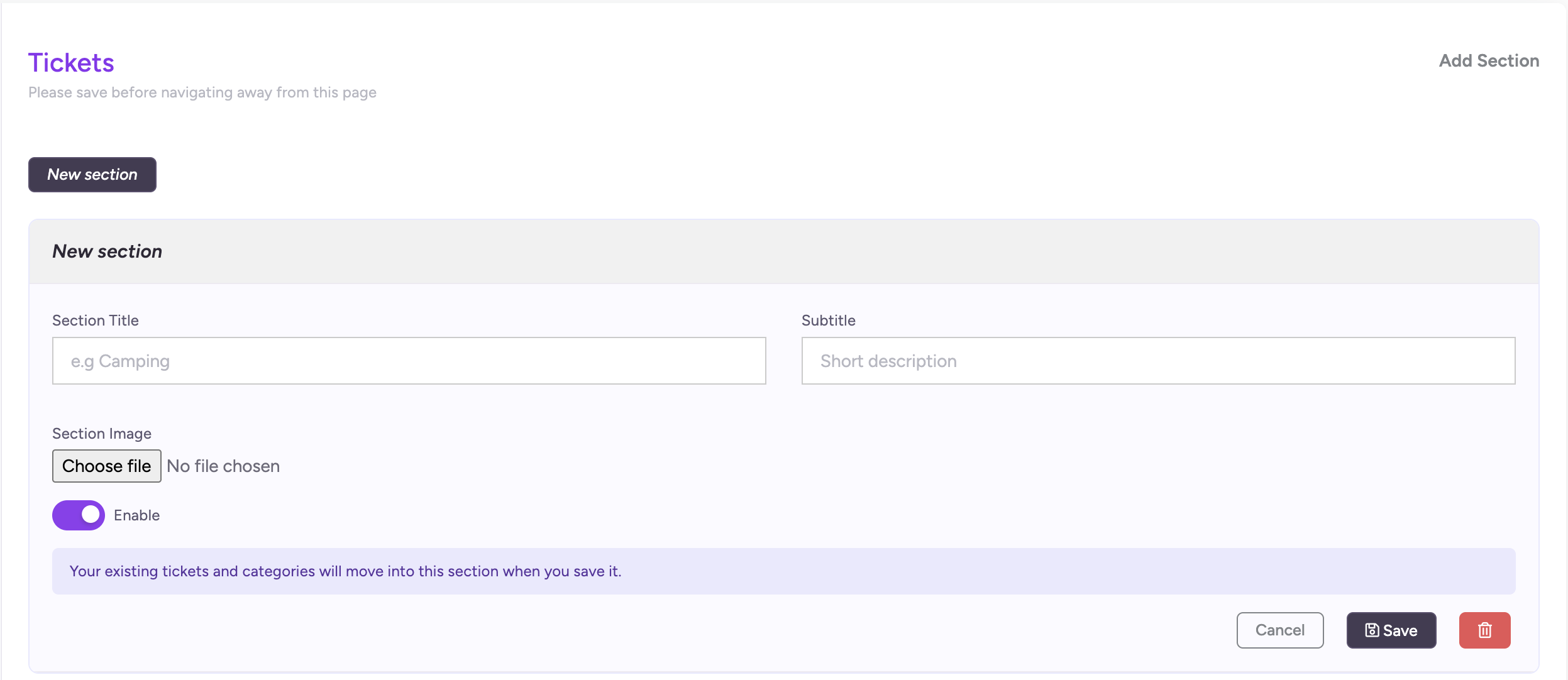
4) Click New Ticket to create the ticket types you want to include in the section. Enter the required details, such as the ticket name, price and quantity etc. Repeat this process for all the ticket types you need.
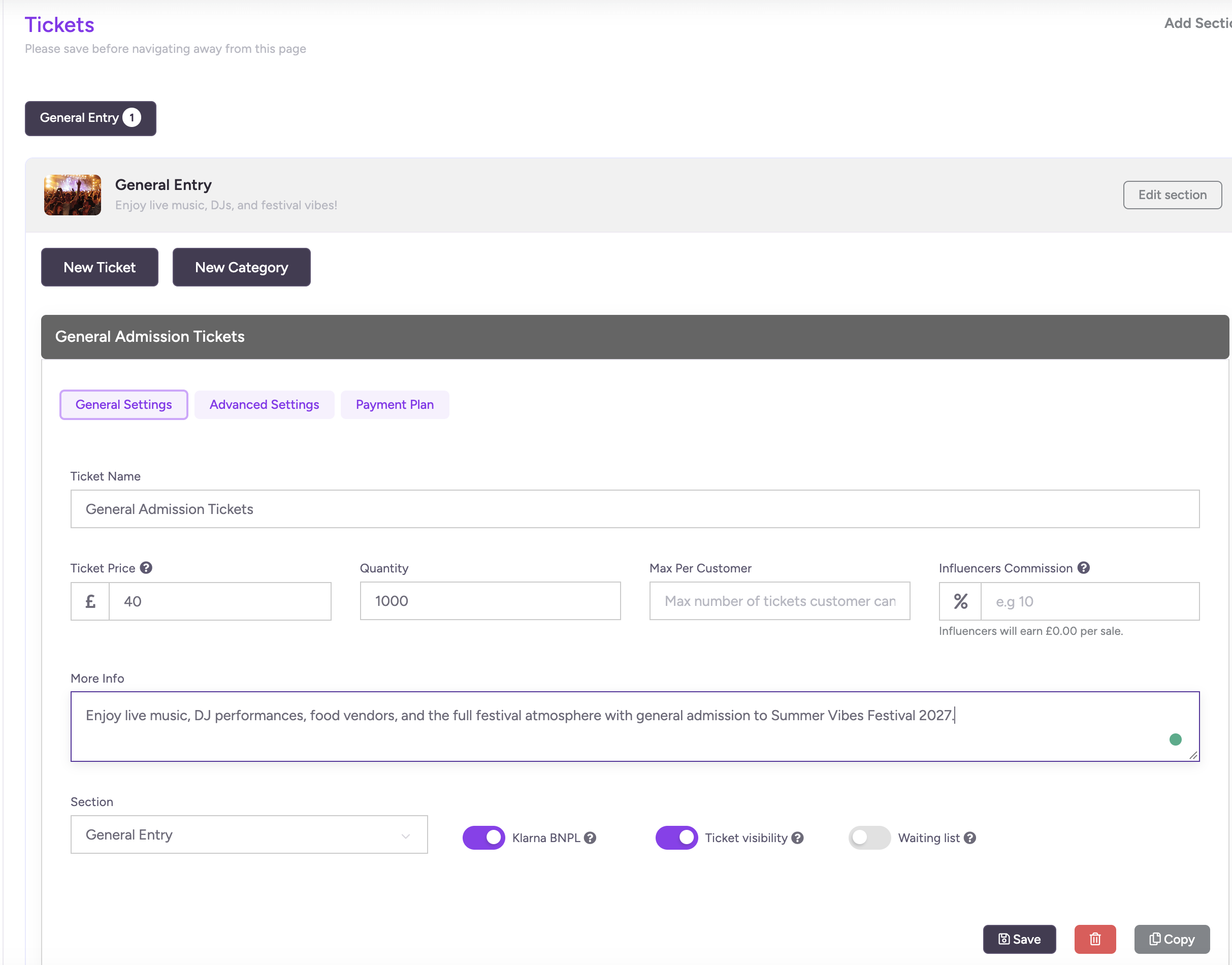
5) To organise your tickets further, click New Category to create a category within the section. Enter the category name and description. Categories are optional and useful when you want to group related ticket types.
6) Drag and drop the ticket types you have created into their relevant categories. If you don't need categories, you can leave the ticket types directly under the section.
7) Once you have finished setting up your sections, click Save to save your changes before navigating away from the Tickets tab.
8) Next, navigate to the Options tab on the left side of the event edit page.
9) Click More Options and, under Advanced Settings (Appearance and Design), locate Ticket Sections Layout.
10) Select your preferred layout, such as Tabs or Tiles, then click Save to apply your changes.
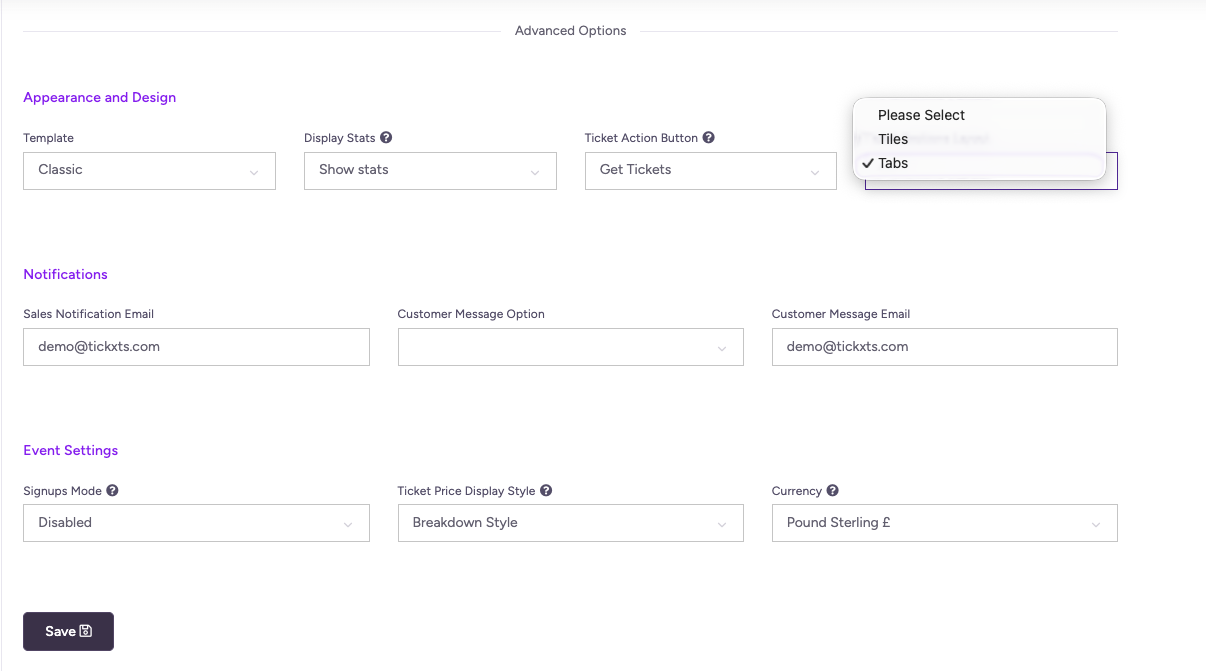
You can create multiple sections and categories to suit your event and organise your ticket types in a way that makes it easier for attendees to find the tickets they want.
Understanding the Ticket Section Layouts
Tickxts offers two layout options for displaying your ticket sections on your event page: Tabs and Tiles. Each layout presents your ticket options differently, allowing you to choose how attendees browse and select their tickets.
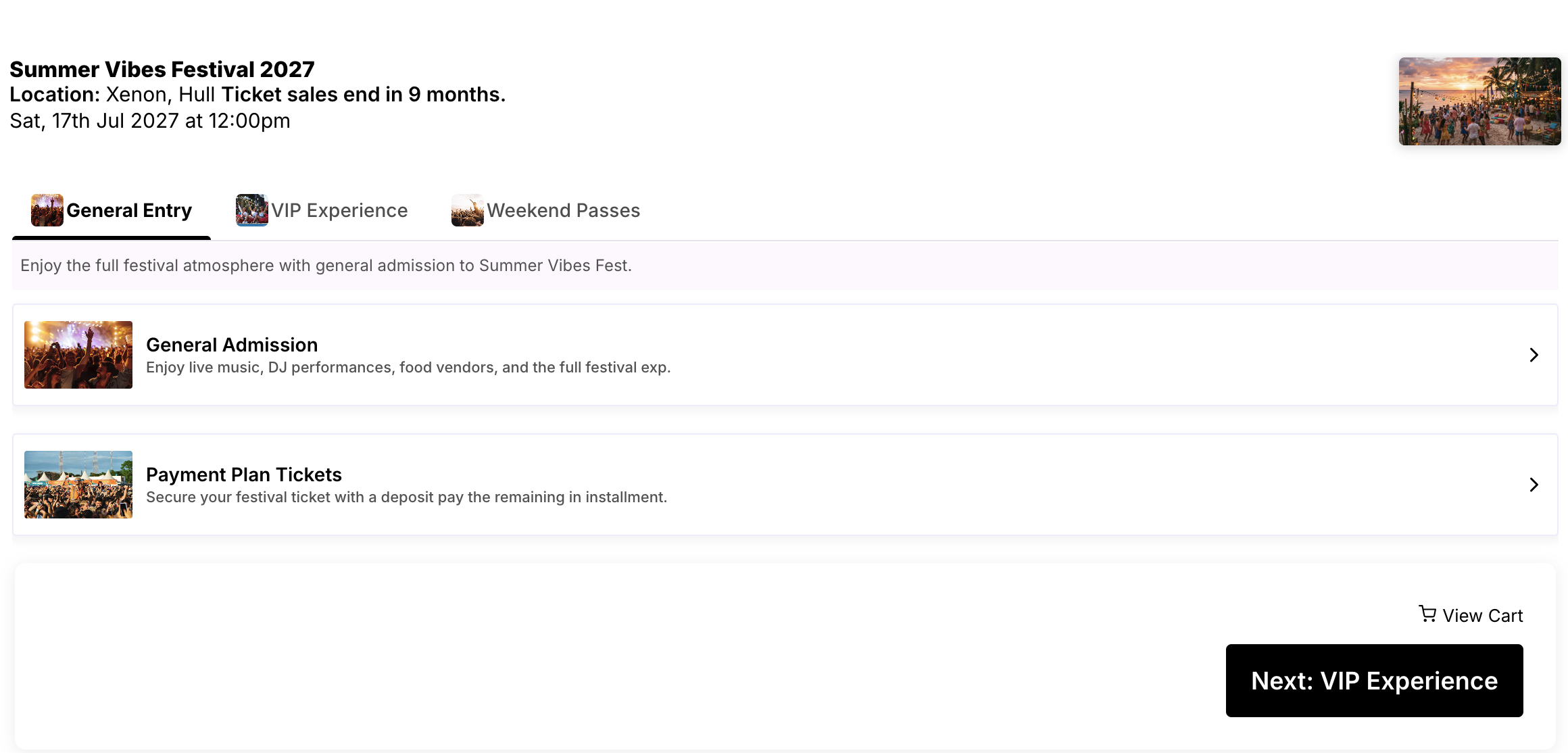
Tabs Layout
The Tabs layout displays your ticket sections in a horizontal navigation bar, with each section represented by its title and a small image. Attendees can select a tab, such as Friday Passes, Saturday Passes or Parking, to view the relevant ticket options.
The selected section's description and available ticket options are displayed below the navigation bar.
The Tabs layout is ideal if you want to:
1) Keep your event page organised and compact.
2) Allow attendees to switch easily between different ticket sections.
3) Present multiple ticket sections without displaying all the sections as separate cards at once.
Tiles Layout
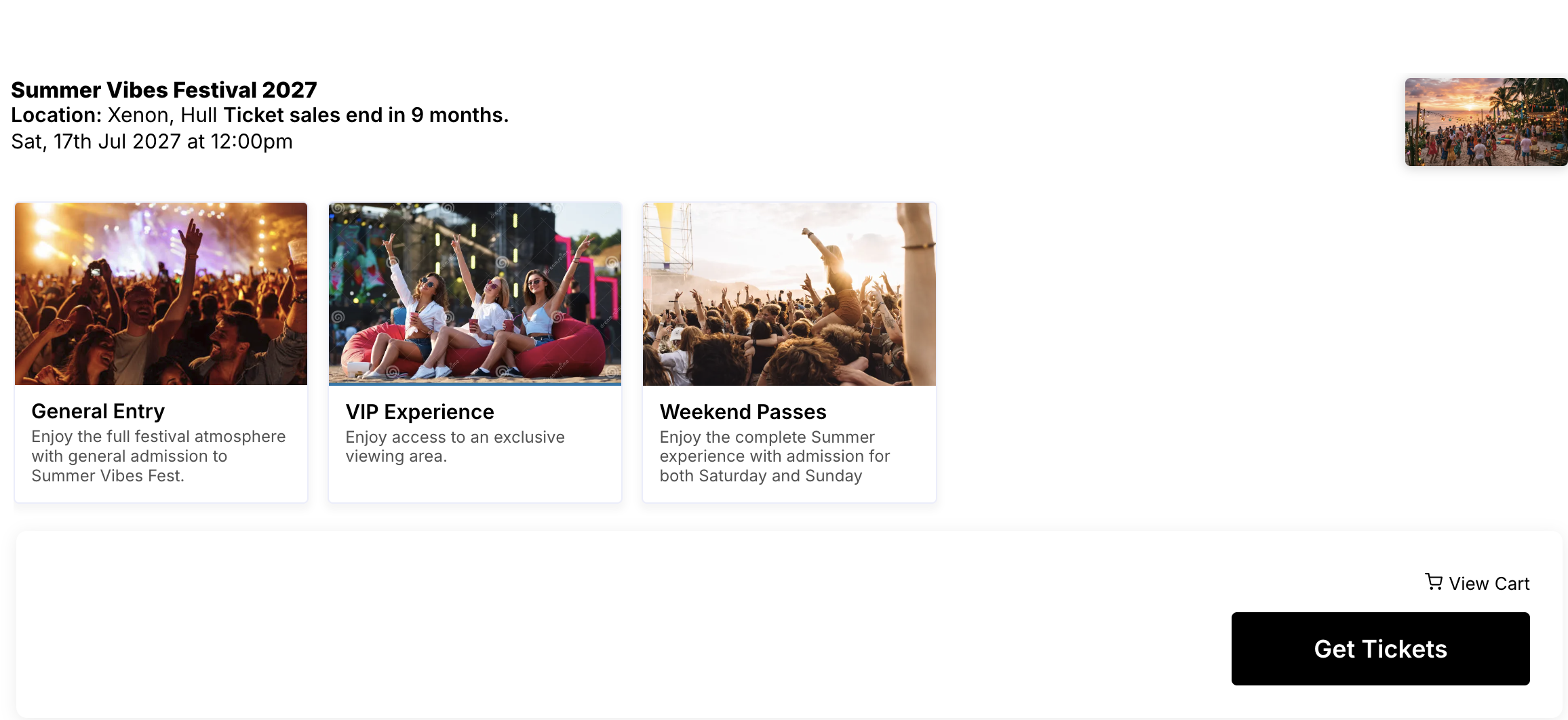
The Tiles layout displays each ticket section as a separate card featuring an image, title and short description. Attendees can view the available sections together and select the one they want to explore.
The Tiles layout is ideal if you want to:
1) Display ticket sections as separate visual cards.
2) Use images to make different ticket options more recognisable and engaging.
3) Present different options together, such as general entry, VIP experience, and weekend passes.
Once you have selected and saved your preferred layout, visit your event page to review how your ticket sections are displayed.
Ensure that your section titles, subtitles, images and ticket types are correctly presented. Check that attendees can easily navigate the available options and find the tickets they want.
Last updated: 1 week ago
Published: 29th Oct, 2026